
Written by Geet Ramchandani
Published 4 min read
Buy one IPv4 IP on AlgoIP, copy four details from its dashboard (Host, Port, User, Password), and paste them into TradeCraft under Use my own static IP. TradeCraft tests the IP and shows it to you. Register that IP at your broker, then connect. About 15 minutes, plus AlgoIP's approval time.
Before you start
- About ₹299 a month for one IPv4 on AlgoIP (price at the time of writing, with their launch offer).
- Your broker login. This guide uses Dhan; the steps are the same for other brokers.
- Two tabs open: AlgoIP and TradeCraft.
Step 1: Buy the IP on AlgoIP
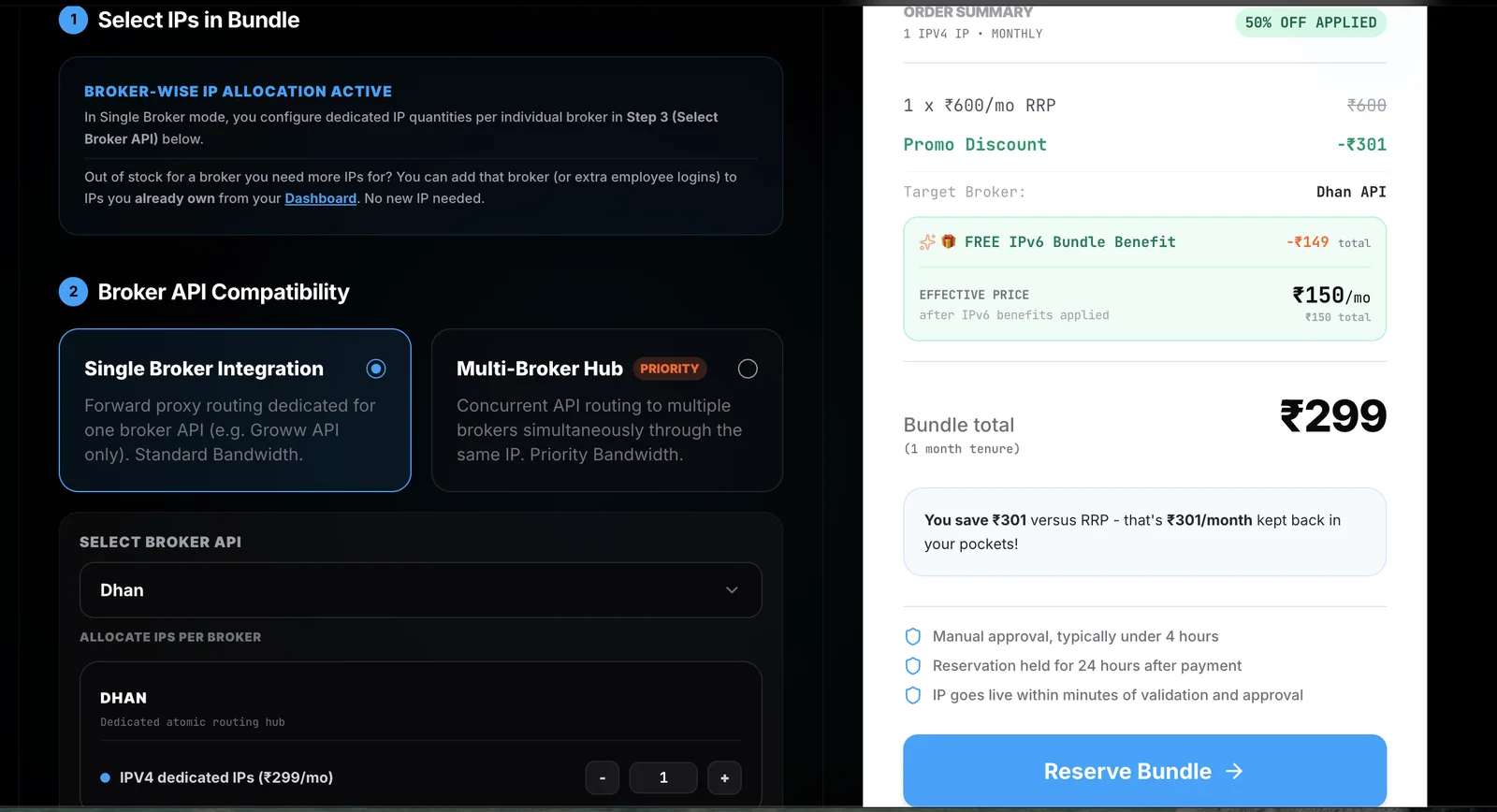
- On algoip.in, open Pricing. Choose Single Broker Integration and pick your broker.
- Keep 1 IPv4 IP and click Reserve Bundle.
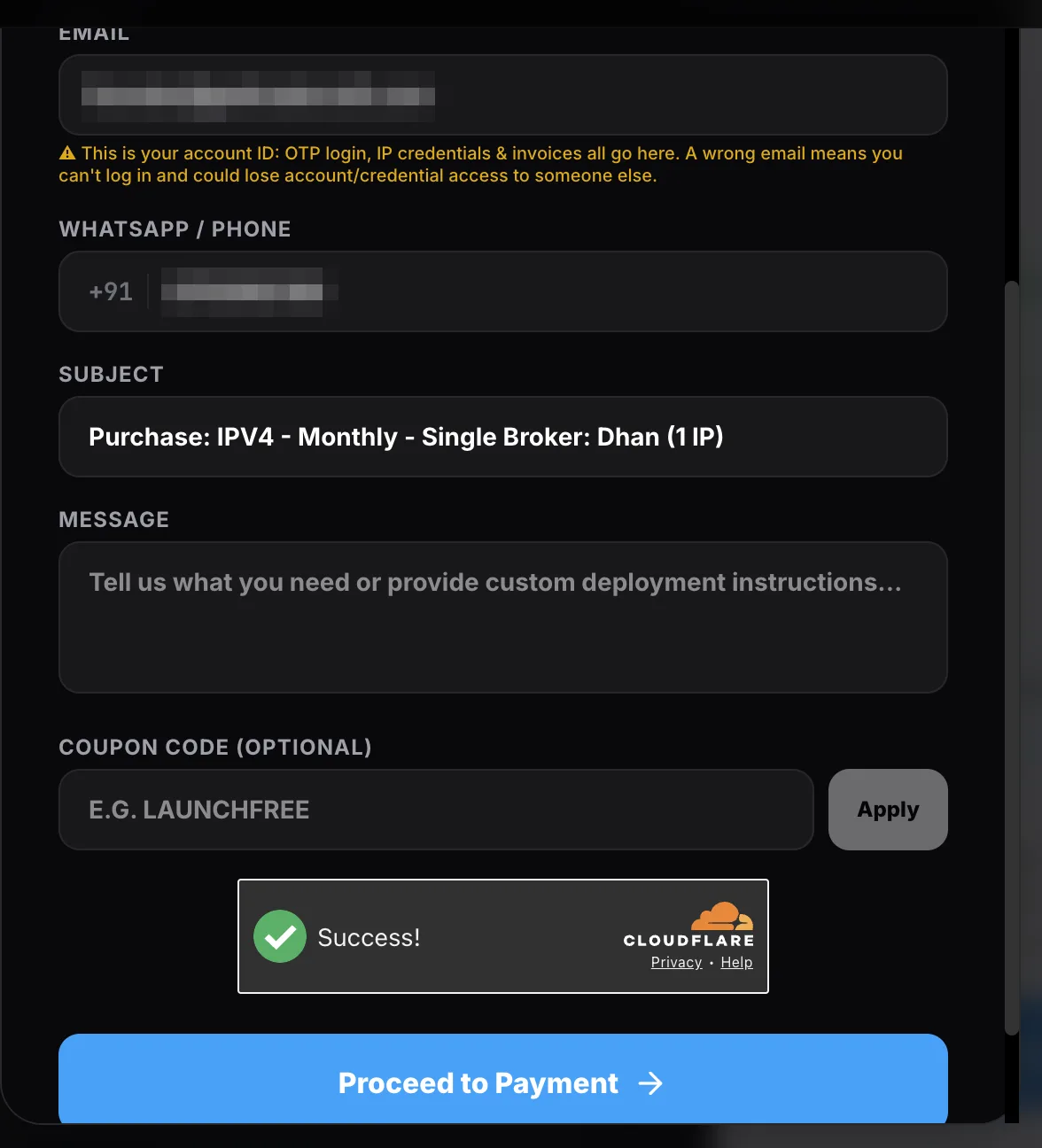
- Enter your email and WhatsApp number, then Proceed to Payment and pay.
- Wait for AlgoIP's approval. They say it usually takes under 4 hours.
Step 2: Copy four details from AlgoIP
Open your AlgoIP dashboard. You'll see two cards. Use the one labelled IPv4 Proxy.
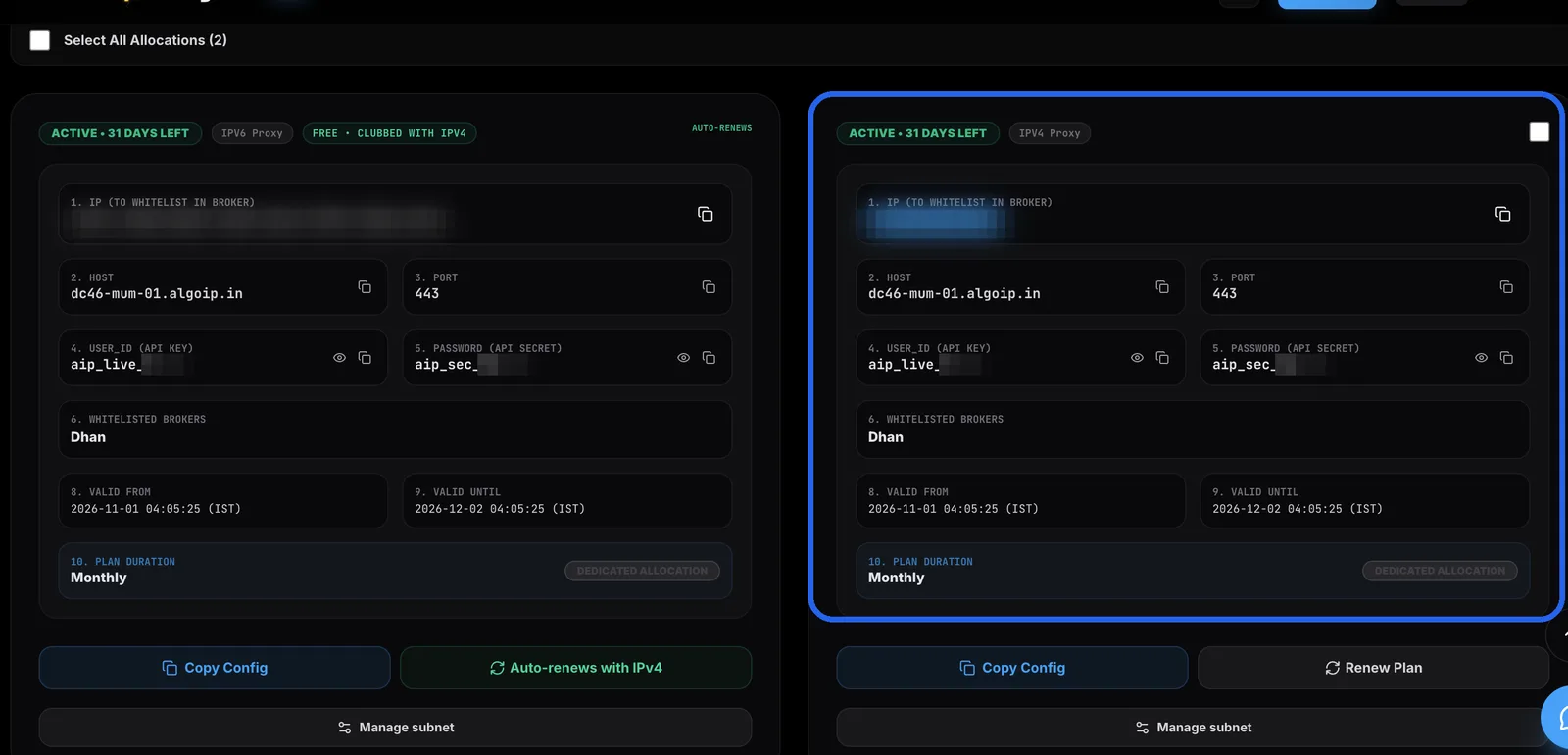
| In TradeCraft | Copy from AlgoIP |
|---|---|
| Proxy IP or server name | 2. Host |
| Port | 3. Port (443) |
| User | 4. USER_ID (starts with aip_live_) |
| Password | 5. PASSWORD (starts with aip_sec_) |
Step 3: Add the IP in TradeCraft
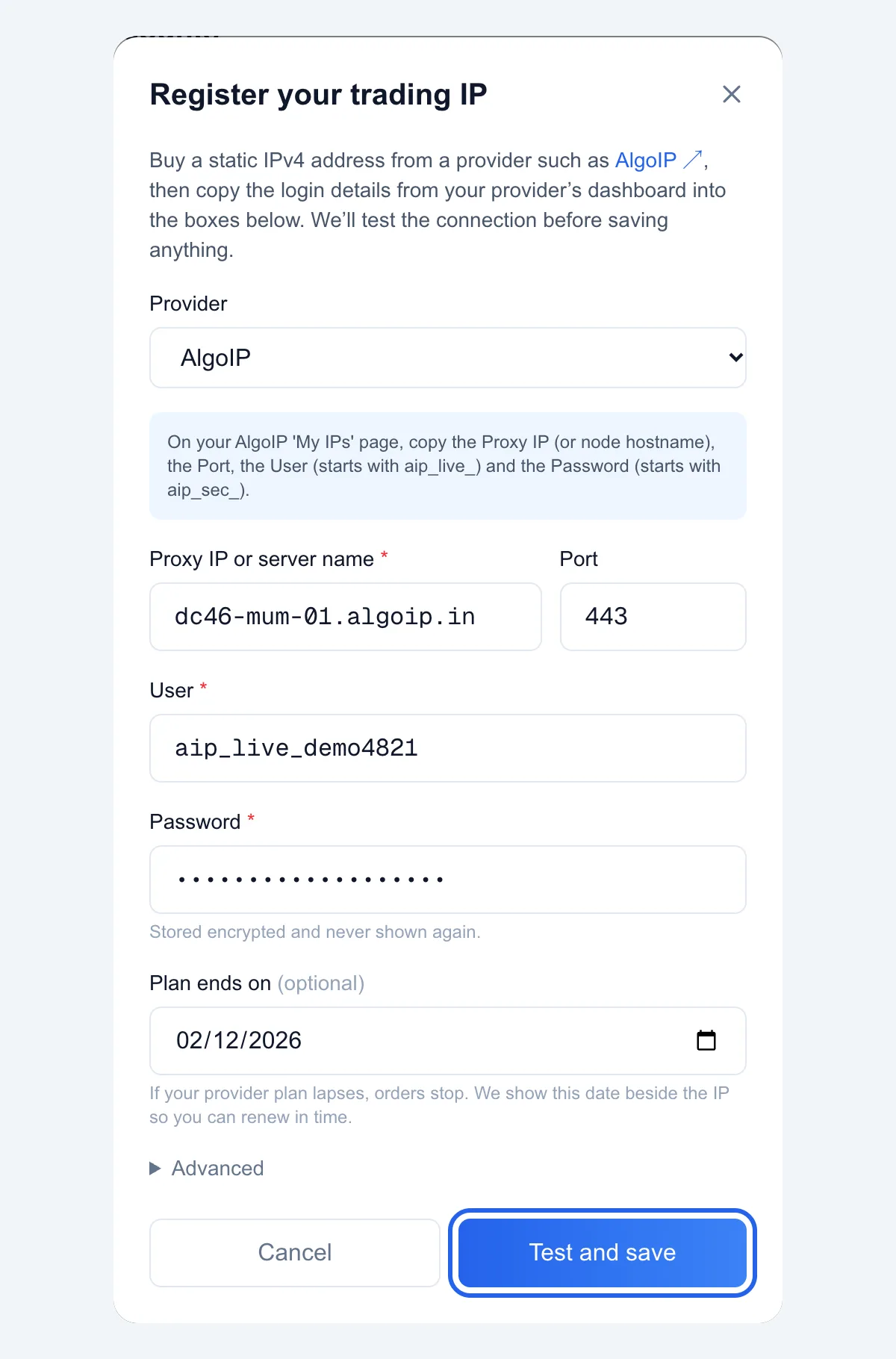
- Go to Brokers, find your broker and click Connect.
- Choose Use my own static IP.
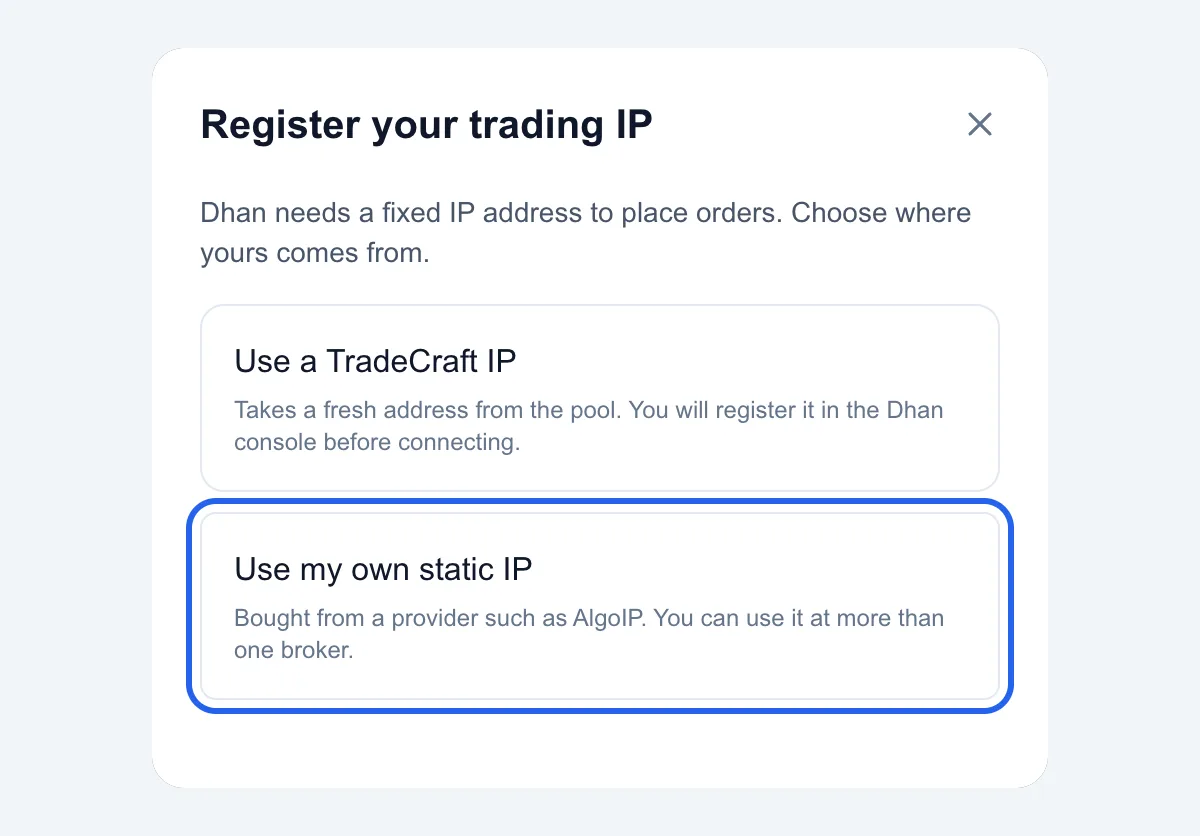
- Keep AlgoIP as the provider, paste the four details and click Test and save.
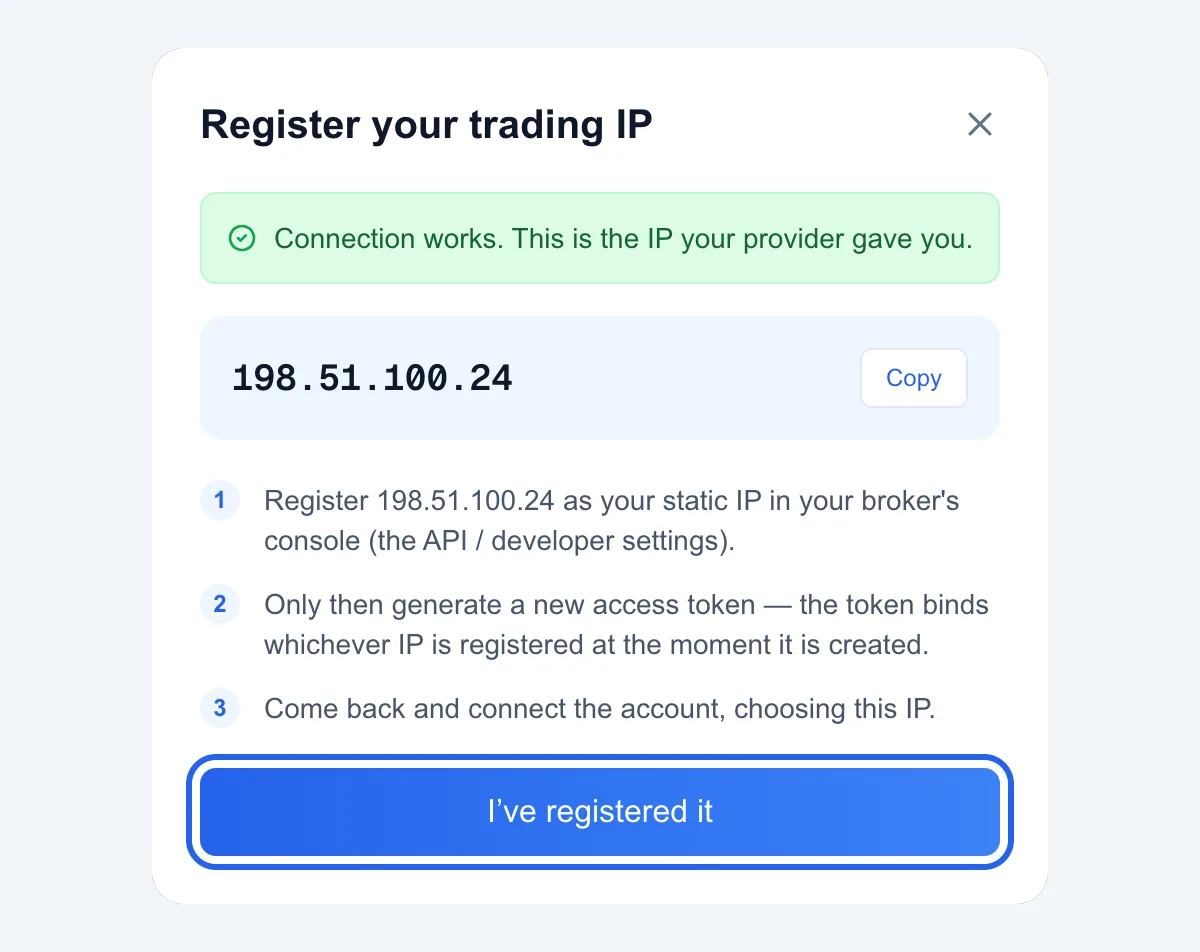
- You'll see Connection works and your IP. Click Copy.
Step 4: Register the IP at your broker
Paste the IP as your primary static IP in your broker's API settings. On Dhan: Profile → Get Trading & Data APIs → Add IP (full Dhan steps).
Step 5: Connect your broker
- Back in TradeCraft, click I've registered it.
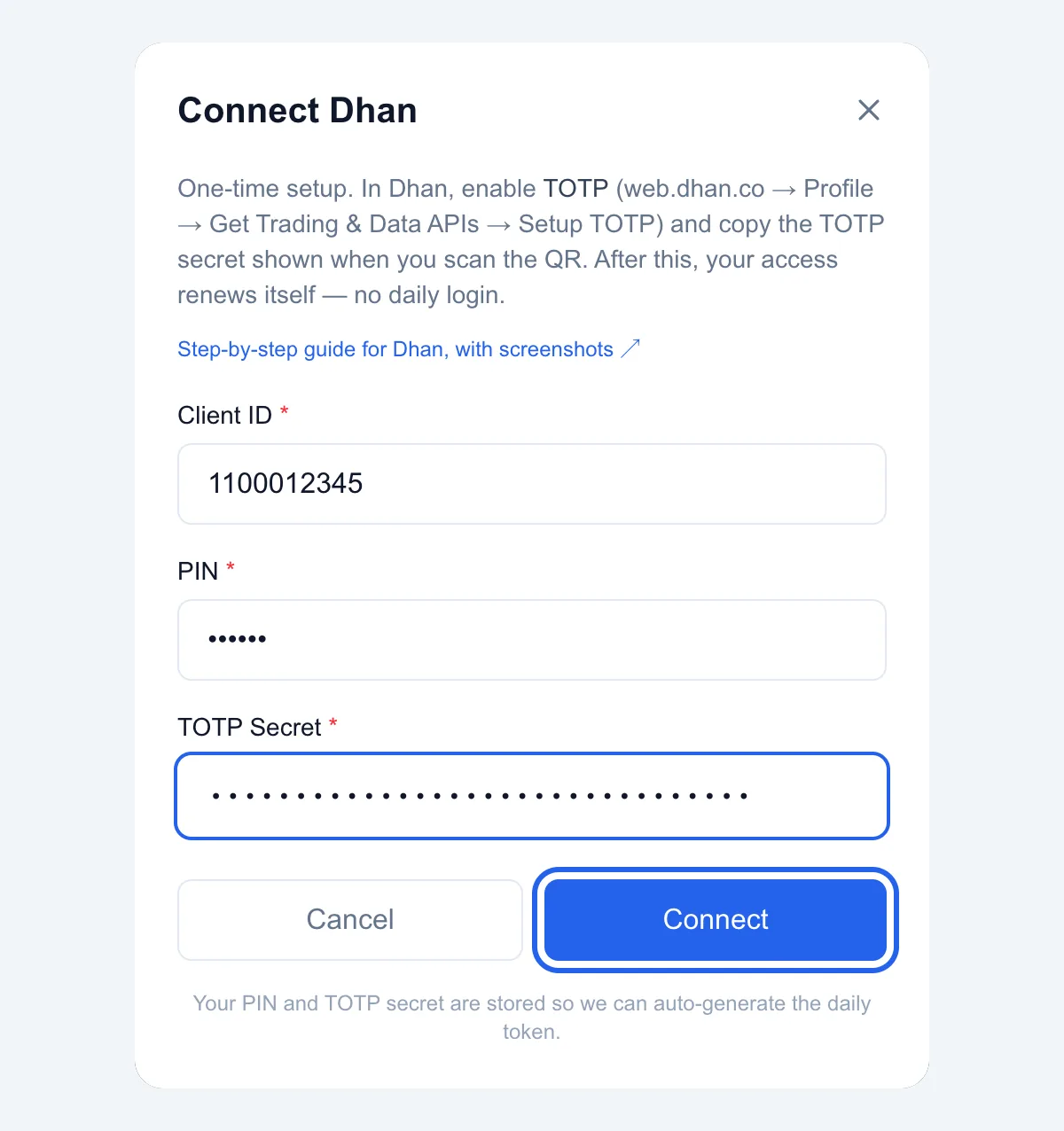
- Fill in your broker's details. For Dhan: Client ID, PIN and TOTP secret (where to find them).
- Click Connect.
Check it's working
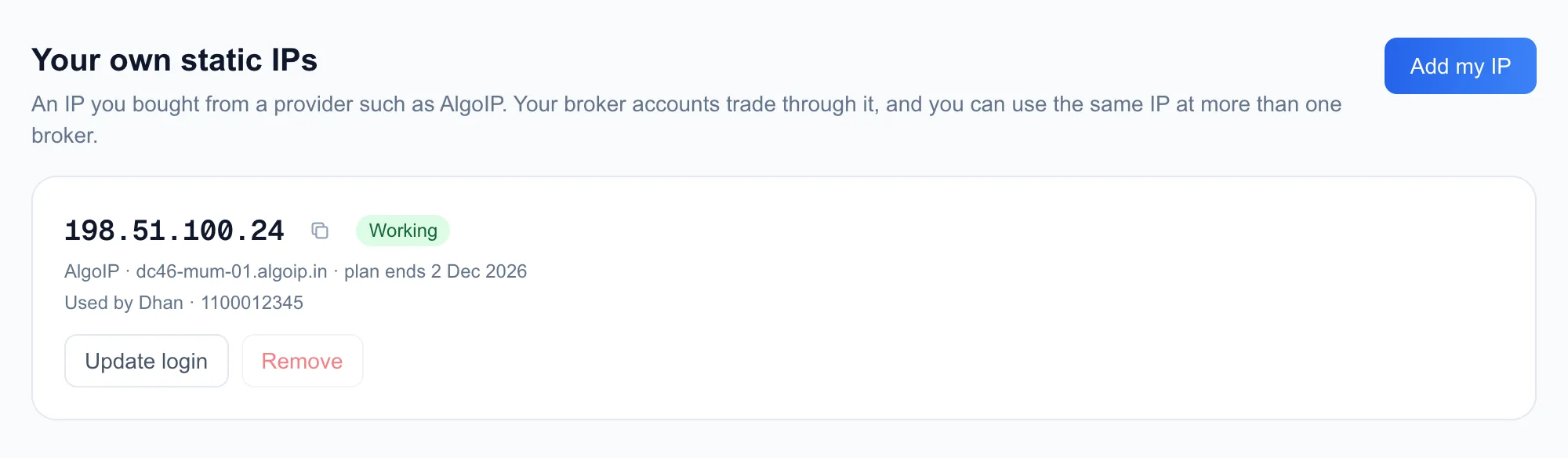
On the Brokers page, Your own static IPs shows your IP with a green Working badge and the account using it.
If something goes wrong
| You see | Do this |
|---|---|
| Your provider didn't accept that username and password | Copy User and Password again from the IPv4 card |
| We couldn't reach your provider's server | Check Host, and that Port is 443 |
| Your provider's server refused the test connection | AlgoIP hasn't approved the plan yet, or it has ended. Check your AlgoIP dashboard |
| We connected but couldn't confirm an IPv4 address | You copied the IPv6 card. Use the IPv4 Proxy card |
| That IP is already in use on TradeCraft | Write to us (below) |
| Badge shows Login rejected | Your AlgoIP password changed. Click Update login and paste the new one |
| Orders rejected with DH-905 Invalid IP | The IP on Dhan doesn't match. Fix it on Dhan, then click Reconnect |
Still stuck? Write to [email protected] with the exact message. Never send your password.
Key takeaways
- Buy IPv4, and copy from the IPv4 Proxy card.
- Four details: Host, Port, User, Password.
- Register the IP at your broker before you connect.
- One IP works at more than one broker: add it once, choose it at each connect.
Frequently asked questions
- Does TradeCraft charge for using my own IP?
- No. You pay AlgoIP directly. TradeCraft charges nothing for routing your orders through an IP you bought.
- Which AlgoIP card do I copy from, IPv4 or IPv6?
- The IPv4 Proxy card. AlgoIP adds a free IPv6 card to your plan, but Indian brokers only accept IPv4.
- Can I use one AlgoIP IP at two brokers?
- Yes. Add the IP to TradeCraft once, register it at each broker, and choose it when you connect each account.
- Is my AlgoIP password safe on TradeCraft?
- It is stored encrypted and is never shown again after you save it, not even to you.
- Can I change the IP later?
- Brokers limit this. Dhan, for example, locks your static IP for 7 days after you set it. Pick the IP you will keep.
Want to try this yourself?
TradeCraft lets you build a strategy, backtest it against historical data, and deploy it on paper before risking a rupee — using your own broker account.
About the author
Geet Ramchandani
Founder & Engineer, TradeCraft
Geet is the founder of TradeCraft, a platform built for retail traders to automate their strategies and mirror trades across broker accounts. With 5+ years of experience trading the markets and hands-on experience with algorithmic trading, he writes about trading systems, execution, backtesting, risk, and what it takes to build them in the real world.
Keep reading
- BrokersHow to Connect Your Dhan Account to TradeCraft (Free DhanHQ API)Register the static IP TradeCraft gives you, switch on TOTP in Dhan, and paste three details. Set it up once and it stays connected — every screen, in order.
- BrokersWhat Is Mirror Trading? How to Copy Trades Across Broker AccountsOne master account, and everything you trade there shows up in your others — even at a different broker. What it does for you, how to switch it on, and the limits worth knowing before you lean on it.
- BrokersHow to Connect Your Zerodha Account to TradeCraft (Free Kite Connect API)Create a free Kite Connect app, register the static IP TradeCraft gives you, and paste two keys. Every screen, in order, plus what to do when Zerodha says no.